Pivot Note Quick Start Guide
New here? You can grasp the essentials of Pivot Note in 5 minutes. Learn how to keep daily records and regather scattered content by topic.
🎬 Prefer video over text? See Learn by video.
What is Pivot Note?
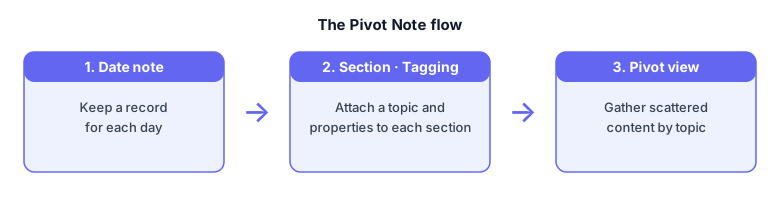
Pivot Note is a note app that lets you attach properties at the paragraph (section) level and gather content scattered across notes by topic.
- Keep daily records as date notes.
- Give each paragraph (section) meaning by attaching a topic and properties.
- Re-weave content on the same topic at a glance with the pivot view.
💡 Ordinary note apps make you remember "where you wrote it," but Pivot Note finds it again by "what you wrote about."
Core concepts
| Concept | Description |
|---|---|
| Date note | A note for a single day. Holds that day's sections. |
| Section | A chunk (paragraph) within a note. Made of a title + content, with a topic and properties attached. |
| Topic · Property | Tags attached to a section. Classify with a topic (e.g. Work, Study) and free-form properties (e.g. Status: In progress). |
| Pivot view | A screen that gathers sections across notes by a given topic or property. |
Screen layout
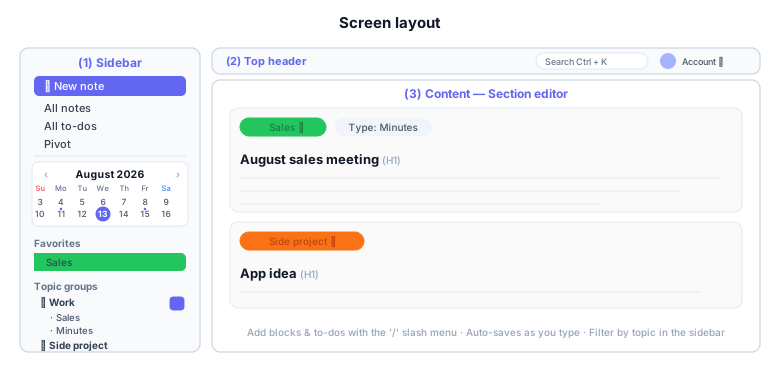
- Left sidebar — the
+ New note,All notes,All to-dos, andPivotmenus, a calendar, favorite topics, and a list that browses topics organized into groups. - Top header — collapse the sidebar, search (
Ctrl+K), the avatar menu (Profile · Manage topics · Usage), and log out. - Center content — the section editor. Attach topics and properties to each section and write your content. The editor uses the full width of the screen.
Get started in 5 minutes
1. Log in
Sign up with your email and log in.
2. Create a new note
Click + New note at the top of the left sidebar to open the date picker.
Choose a date and press Add to open that day's editor.
(If a note already exists for that date, you'll be taken to it.)
3. Write content in a section
- Enter the section title on the top title (H1) line.
- Write your content below. Typing
/(slash) opens a block menu for lists, quotes, code, images, and more. - Selecting text brings up a formatting toolbar with bold, italic, code, and more.
4. Assign a topic and properties
- Click the book icon (Select topic) at the top of a section to assign a topic. If none exists, create one with + Add topic.
- Topics are organized into groups in the sidebar. Press the + next to a group name to add a new topic straight into that group.
- Use the neighboring property bar (+) to attach
key: valueproperties (e.g.Status: In progress).
5. Save & view
- Your work is saved automatically as you type. You can also save immediately with the Save button at the top.
- Press View at the top to switch to a read-only screen without the editor.
6. Gather by topic (the key part!)
- In the topic list (below the calendar) in the left sidebar, click a topic to see that topic's sections scattered across dates gathered in date order.
- To filter more precisely, add a
property : valuefilter in the pivot view.
7. Search
Press Ctrl + K anytime to quickly search notes, sections, and topics.
Good to know
- Gather to-dos — items you create with
/→ To-do (checkbox) inside a section are collected underAll to-doson the left, grouped by topic or by date, so you can see everything still open at a glance. - Points — creating notes, topics, and images consumes points (note 1P, topic 10P, images 10P per 1MB). Check your remaining points in the header avatar menu → Usage; you can't create more when you run out.
- Favorite topics — favorite the topics you check often and they stay pinned with a color band at the top of the sidebar.
- Calendar — click a date that has notes in the sidebar calendar to jump straight to that day's notes.
- Lounge · What's New — the gear (⚙️) menu → Lounge is a space to freely post messages and replies, and from there you can open What's New to see the latest features.
- Profile · Manage topics — from the header avatar menu, change your display name, icon, and password (Profile), and organize topic groups and topics (Manage topics).
- Switch language — toggle Korean/English on the login screen and the landing page.
- Auto-expand to today — the date list automatically expands to today's date when opened.
Handy shortcuts
| Action | Shortcut |
|---|---|
| Open search | Ctrl + K |
| Block menu | / (slash) |
| Bold / Italic | Ctrl + B / Ctrl + I |
Next steps
- Keep recording one note a day, and be sure to assign a topic to every section.
- Once a week's worth builds up, gather them by topic in the pivot view to feel the real power.
If you have questions or suggestions, reach out anytime at happyhomeconsult01@gmail.com. 🙌